Cisco Workspace App Review
Download and setup notes for Cisco Workspace App. Useful links are listed below.
Download starts through this site’s download flow (operator MySoft package when uploaded).
Cisco Workspace App DownloadFree for PC · site download
Overview
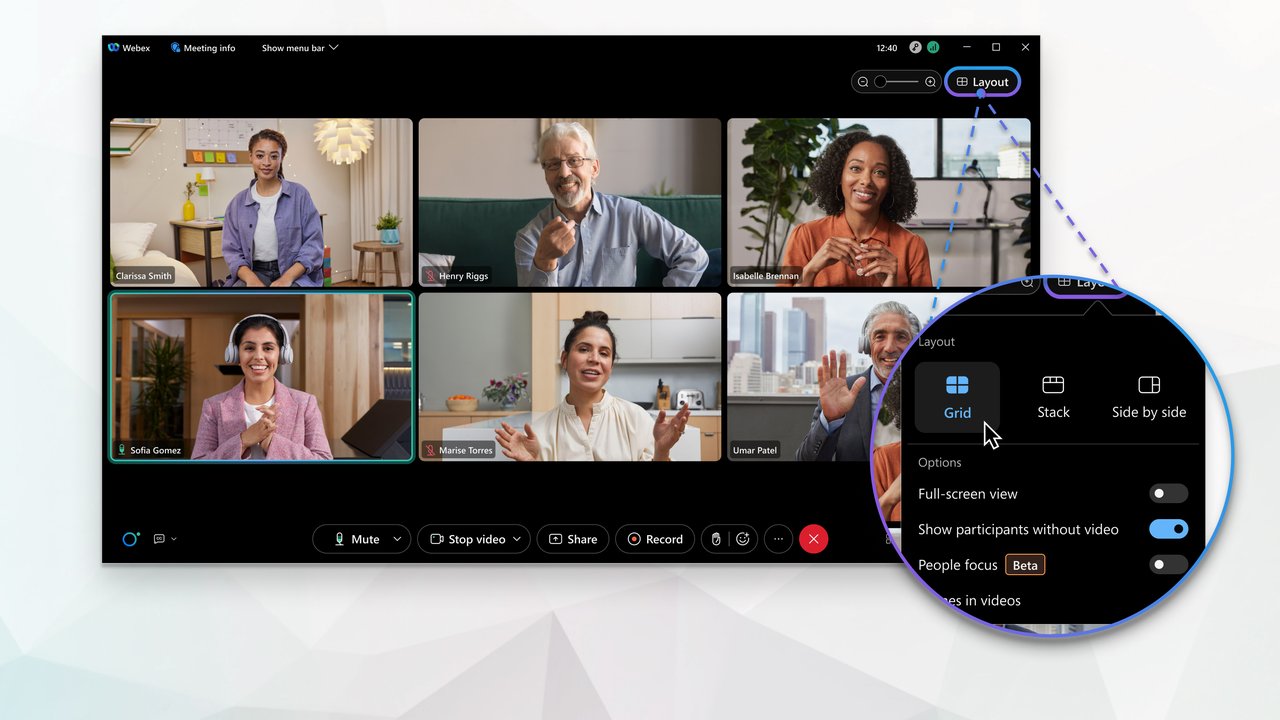
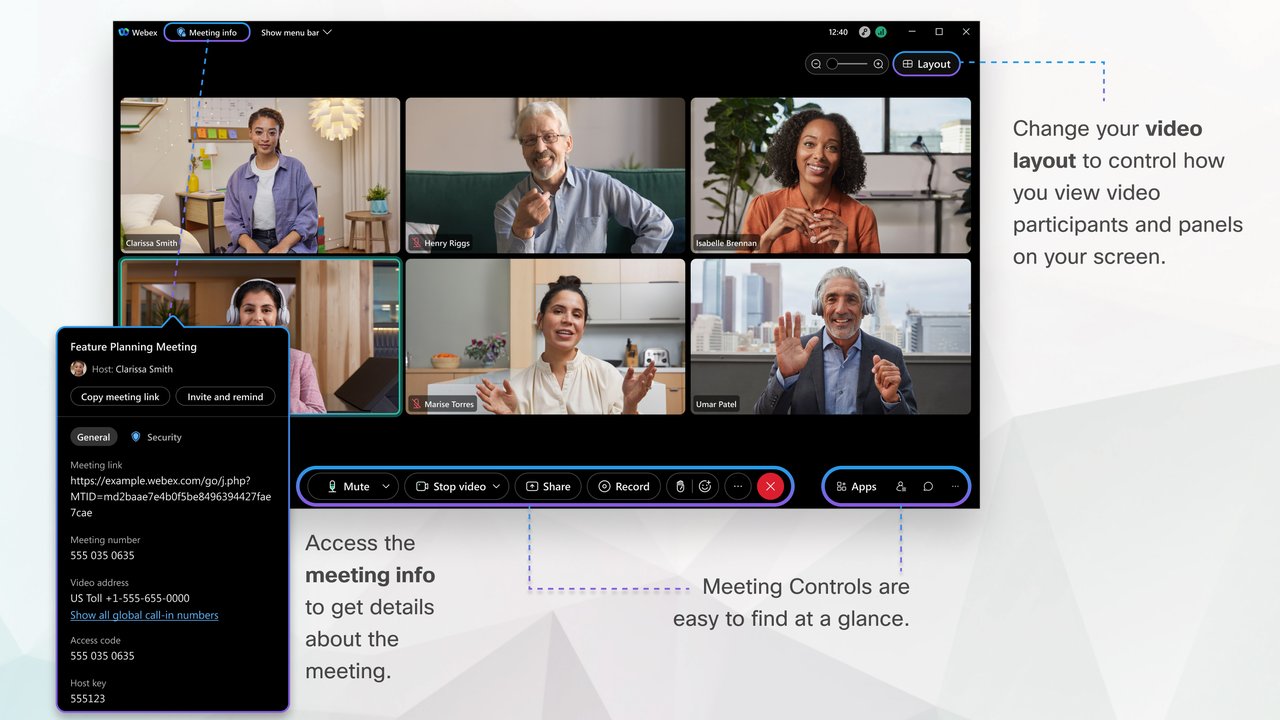
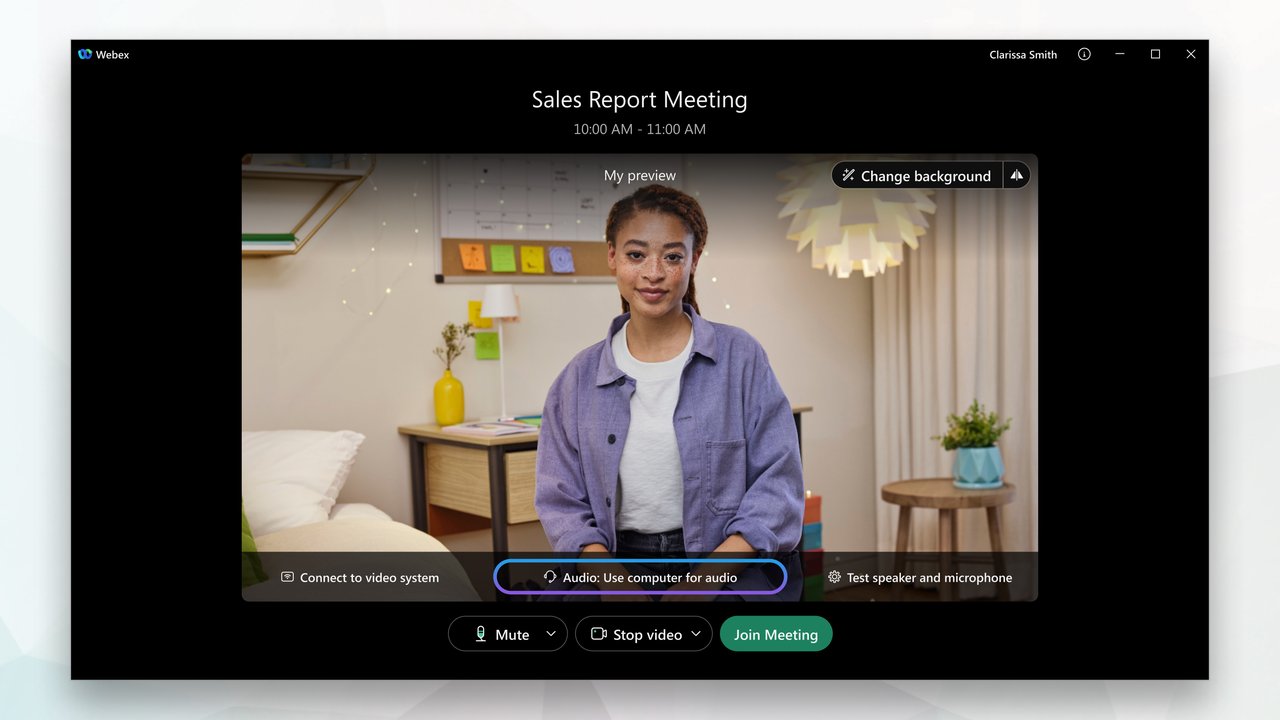
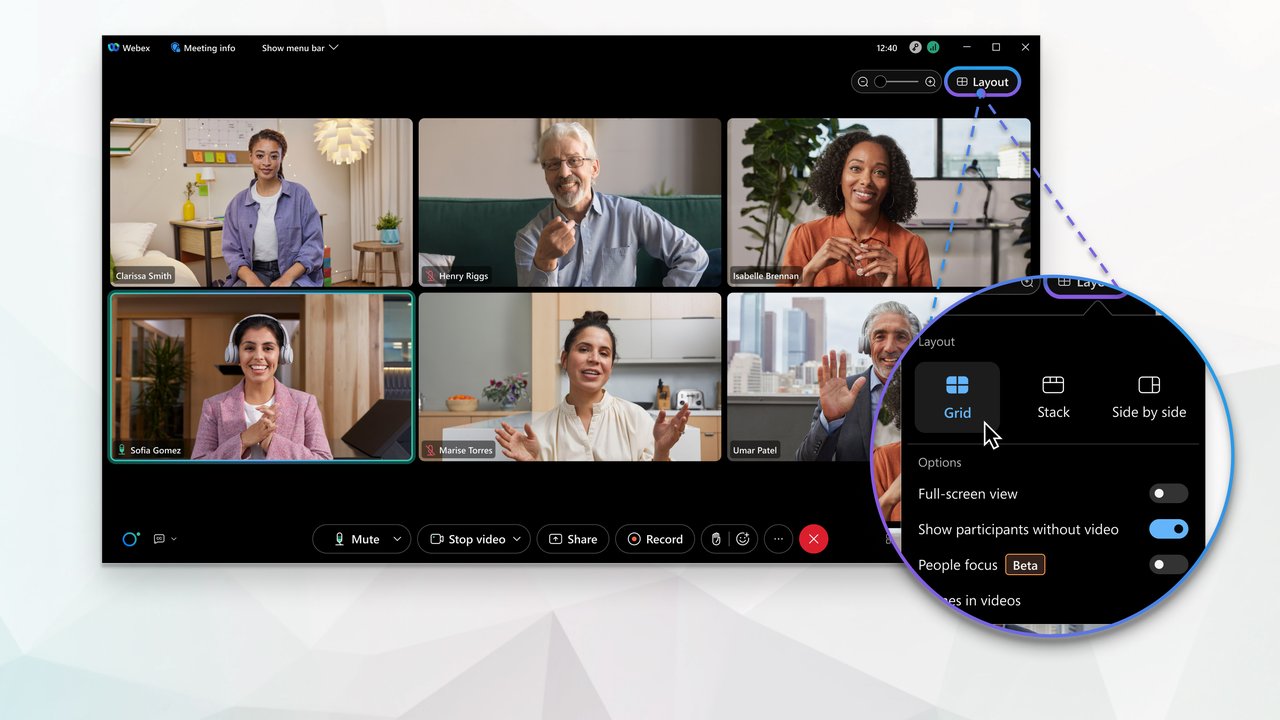
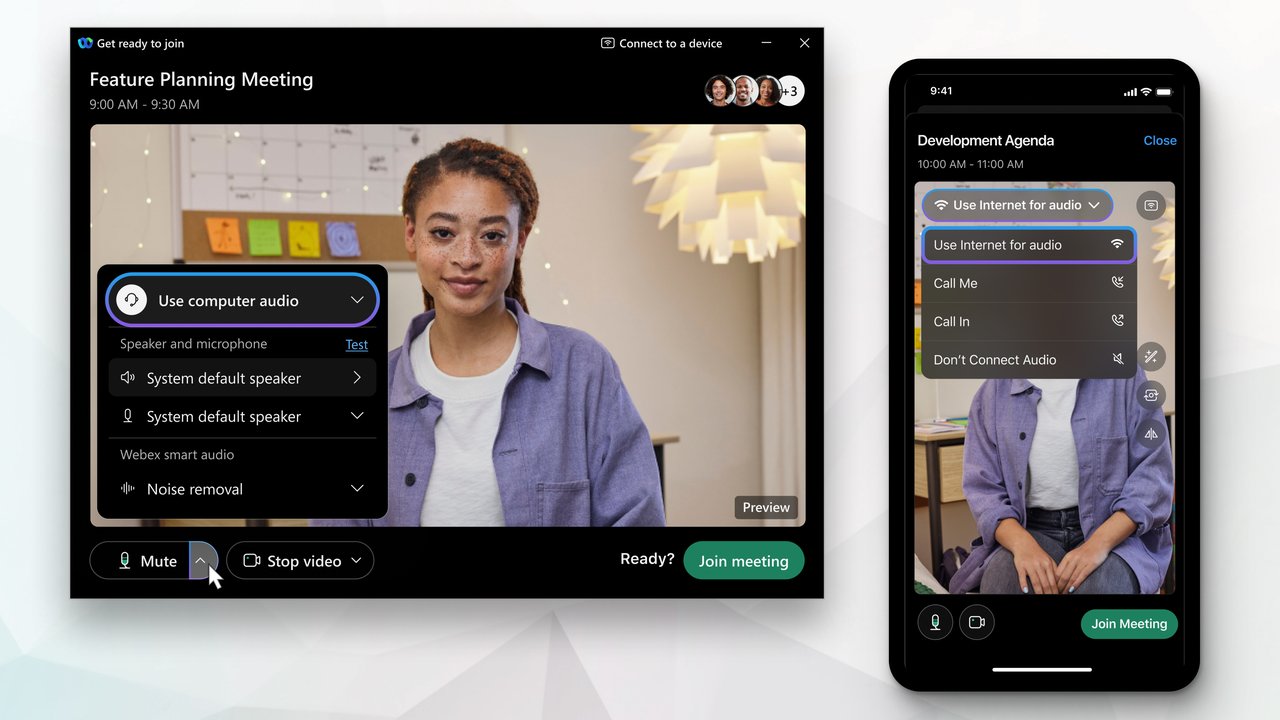
Cisco Workspace App brings workplace collaboration surfaces into a Windows desktop client: Home overview, app/resource tiles, meeting join flows, settings, and notifications. This guide covers install, sign-in, meeting join, settings, and notification hygiene — with software UI screenshots of the Windows client.
Why Choose Cisco Workspace App
- Single Windows client for workspace home + meetings
- Tile-based apps/resources navigation
- Clear settings and notification surfaces
- Screenshotable UI for IT onboarding docs
- SEO-ready install and first-run guidance
Key Features
Cisco Workspace App for Windows consolidates collaboration entry points: home, apps, meetings, and settings. Teams onboard faster when screenshots match the exact dialogs they will see on first launch. Use this guide for download, sign-in, and day-one meeting join on Windows 10/11.
- Home overview: Start from a dashboard that surfaces recent activity and shortcuts.
- Apps catalog: Browse assigned workspace apps/resources as tiles.
- Meetings: Join or start meetings without leaving the desktop client.
- Settings: Control devices and client behavior from one panel.
- Notifications: Catch invites and mentions in a dedicated drawer.
Screenshots
System Requirements
| Component | Minimum Requirement |
|---|---|
| Operating System | Windows 10 / 11 (64-bit) |
| Architecture | x64 |
| RAM | 4 GB |
| Disk | 200 MB free |
| Network | Internet for activation / VPN / cloud features |
Technical Specifications
| Operating System | Windows 10 / 11 (64-bit) |
|---|---|
| Architecture | x64 |
| RAM | 4 GB |
| Disk | 200 MB free |
| Network | Internet for activation / VPN / cloud features |
Pros and Cons
Pros
- Single Windows client for workspace home + meetings
- Tile-based apps/resources navigation
- Clear settings and notification surfaces
- Screenshotable UI for IT onboarding docs
- SEO-ready install and first-run guidance
Cons
- Feature availability for Cisco Workspace App depends on your organization policy and license.
- Always prefer allowlisted downloads from this guide or the vendor site.
- UI labels can vary slightly between builds — screenshots may differ from your package.
Cisco Workspace App Setup in 5 Steps
- Install on Windows. Download from [softnuvia.pro](https://softnuvia.pro/cisco-workspace-app/) and run the installer.
- Sign in to workspace. Use your organization account to reach Home and Apps.
- Join or start meetings. Open Meet flows from the client when calendar invites arrive.
- Configure settings. Set devices, notifications, and startup options.
- Review notifications. Use the notifications UI to catch missed mentions and invites.
Recommendations
- Download Cisco Workspace App through this guide page or the official vendor channel.
- Confirm Windows 10/11 and free disk space before running setup.
- Keep the client updated when your vendor publishes security fixes.
Software Details
| Package | Cisco Workspace App for Windows |
|---|---|
| Release | latest |
| Platform | Windows |
| License | Proprietary (Cisco EULA) |
| Guide URL | https://softnuvia.pro/cisco-workspace-app/ |
Useful Links
- 🌐 Download page — Windows guide
- 📥 Webex downloads — Related Cisco collab downloads
Frequently Asked Questions
Where does the Download button go?
It uses this site’s download flow (MySoft package when uploaded; otherwise the allowlisted official package).
Do screenshots match my build?
Screenshots show the software UI and may differ slightly from the download build version.
Is this the vendor website?
No — this is an independent Windows download/setup guide with UI documentation.
User Reviews
Short reader notes about Cisco Workspace App and this guide on softnuvia.
-
★★★★☆
“Exactly what I needed”
-
★★★★★
“Cisco Workspace App download was”
-
★★★★★
“Setup steps were accurate”
-
★★★★★
“Perfect for first install”
-
★★★★★
“Trusted download link here”
-
★★★★☆
“No confusing mirror links”
-
★★★★★
“Simple and very reliable”
-
★★★★★
“Site made setup easy”
-
★★★★★
“Clear Cisco Workspace App setup”
-
★★★★★
“Virus scan badge reassuring”
-
★★★★☆
“Clean UI guide pages”
-
★★★★★
“Cisco Workspace App installs cleanly”
-
★★★★★
“Great soft and site”
-
★★★★★
“Quick start was painless”
-
★★★★★
“Clean download worked fine”
-
★★★★☆
“Trusted Cisco Workspace App page”
-
★★★★★
“Install wizard ran smoothly”
-
★★★★★
“Short clear setup tips”
-
★★★★★
“Solid Cisco Workspace App guide”
-
★★★★★
“Loved the screenshot section”
-
★★★★☆
“Useful system requirements table”
-
★★★★★
“Setup guide was clear”
-
★★★★★
“Bookmarking this software page”
-
★★★★★
“Works well after install”
Leave a review
Share a short note about Cisco Workspace App. Reviews are moderated before they appear.